
To set up alert notifications, click the Setup Notification ( ) icon of the corresponding alert rule. The Setup Notifications dialog box provides you with multiple options to configure the alert notification.
Note
The solid bell icon ( ) under the Actions column indicates notification-enabled alert rules, while the outline bell icon () indicates notification-disabled alert rules.
Note
You must configure the SMTP service before sending email notifications.
Go to Settings >> Knowledge Base from the navigation bar and click Alert Rules.
Click the Setup Notification () icon from the Actions column of the alert rule.
Click Email Notification and select Notify via email.
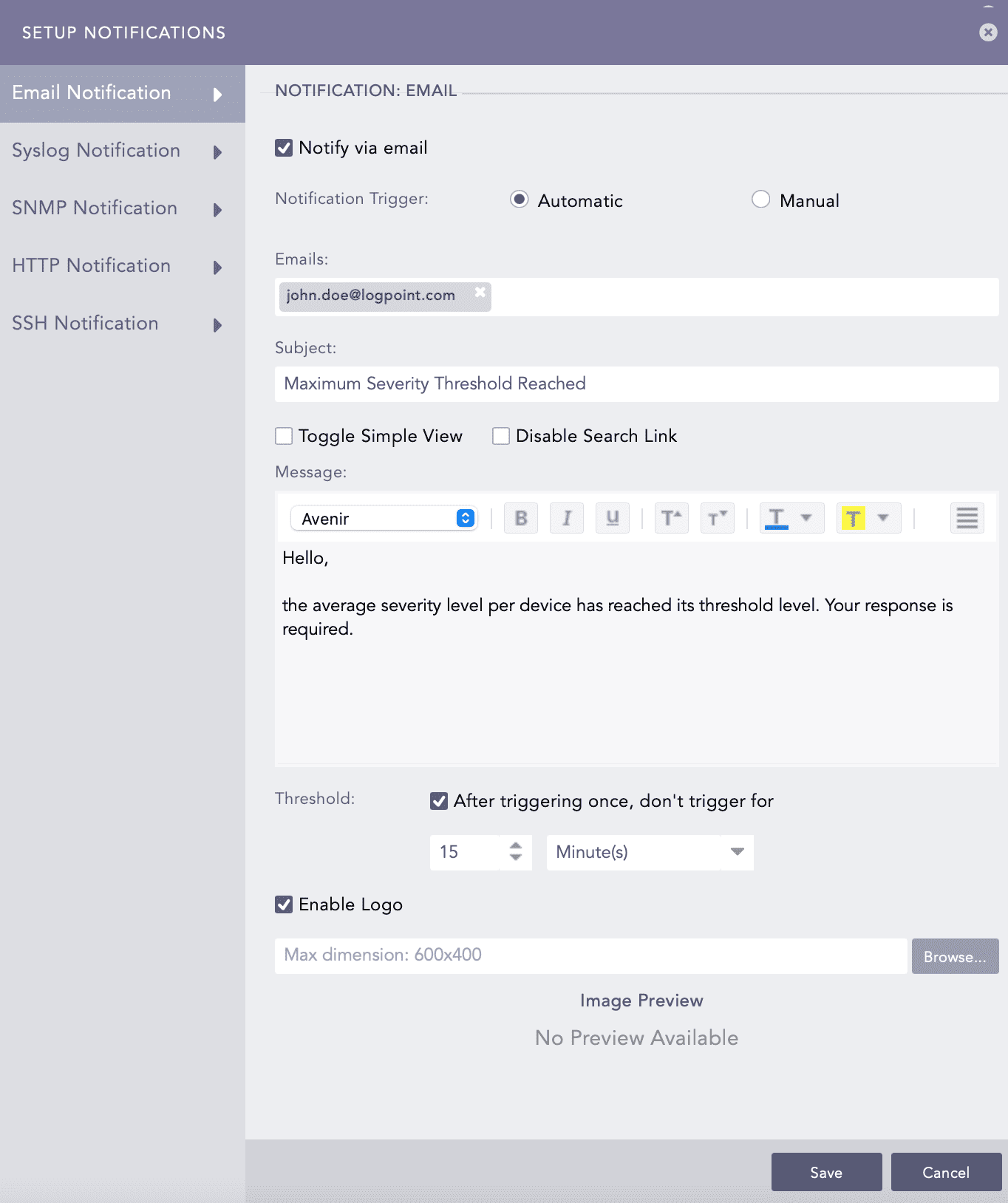
Email Notification Setup
In Notification Trigger:
Select Automatic to send a notification every time the alert rule is triggered.
Select Manual to manually send the notification from the Incident Actions.
Enter valid email addresses in Emails.
Enter a Subject. Logpoint supports various Jinja commands for alert rules such as: {{alert_name}}, {{detection_timestamp}}, {{risk_level}}, {{rows}} and {{rows_count}}. You can write them in the Subject field as:
Logs from {{rows[0].col_type}} on date {{rows[0].col_ts|datetime}}
You can use the Jinja commands {{attack_id}}, {{attack_tag}}, {{attack_category}}, and {{log_source}} in the Subject and Message fields. You can also use the Jinja commands in the alert’s metadata fields. You can use the metadata fields threatactor, Associated_Malware, and System, as Jinja commands {{threatactor}}, {{Associated_Malware}}, and {{System}}.
Some example Jinja commands that you can use in email subject and message fields are:
Jinja template to display devices that sent logs:
{% for row in rows %}

Device: {{row.device_name}}

{% endfor %}
Jinja template to display severity-based message:
{% if risk_level == "medium"%}

  <p style = "color:yellow"> You need not take any action </p>

{% elif risk_level == "high"%}

  <p style = "color:red"> Take action immediately </p>

{% endif %}
To learn more about which Jinja commands you can use for the Subject and Message fields, go to Logpoint Reserved Jinja Placeholders.
Select Toggle Simple View to enable or disable the advanced text editor.
Select Disable Search Link to remove the search link in the email. The search link redirects to the search page of the Logpoint machine from which the email notification is configured.
Enter a Message.
Set the Threshold.
Select Enable Logo if you want to include the Logpoint logo in the email notification. If you do not want to include the Logpoint logo in the email, deselect Enable Logo and click Save.
Browse for the image in the JPG/JPEG format if you want to provide a custom logo. The maximum dimension for the custom logo is 600*400.
Click Save.
Before configuring SMS notification, SMSC server must be accessible from Logpoint.
Go to Settings >> Knowledge Base and click Alert Rules.
Click the Setup Notification () icon from the Actions column of an alert rule.
Click SMS Notification and select Notify via SMS.
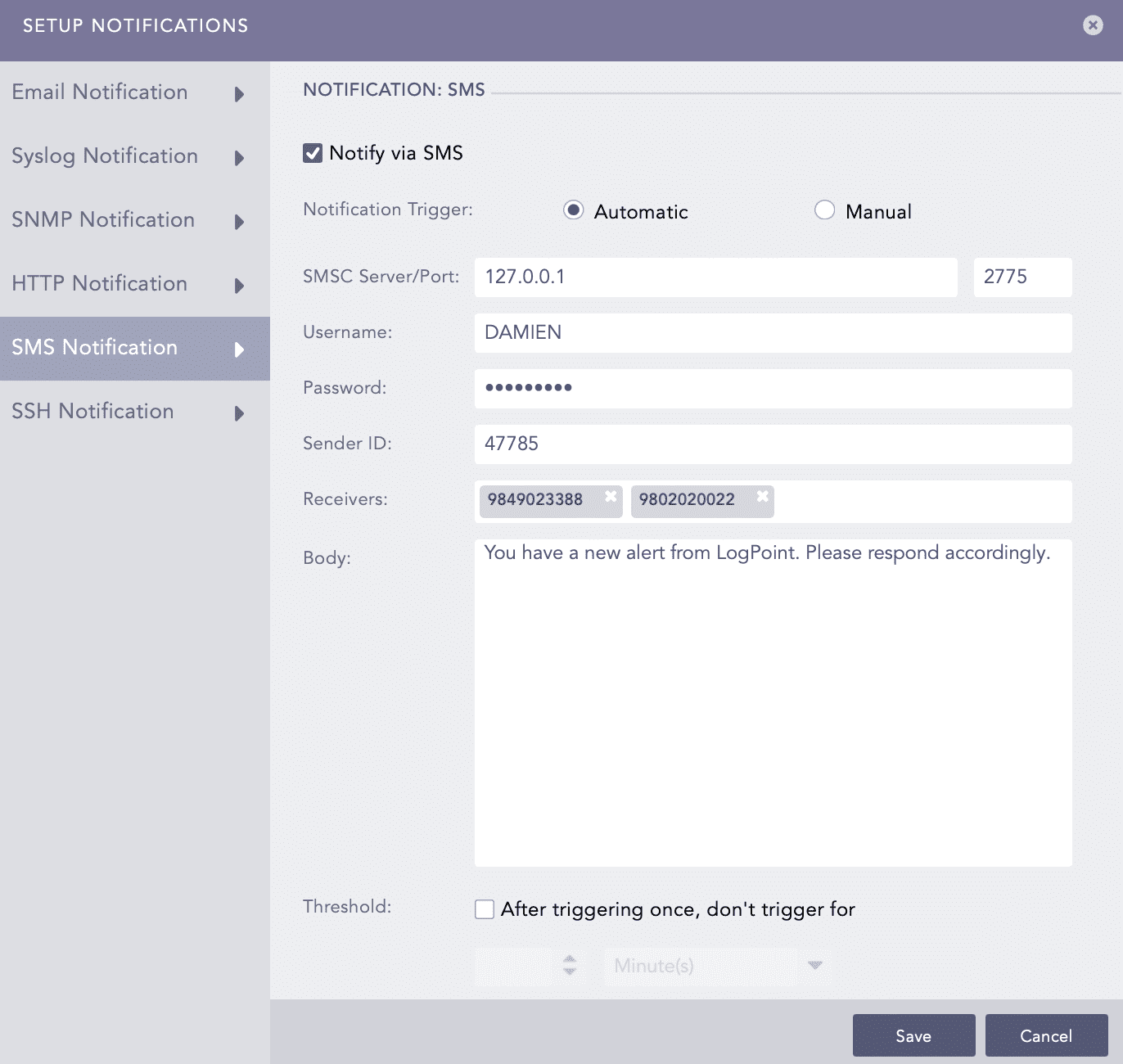
SMS Notification Setup
In Notification Trigger:
Select Automatic to send an sms notification every time the alert rule is triggered.
Select Manual to manually send the sms notification from the Incident Actions.
Enter SMSC Server/Port. The SMSC server supports both hostname and IP address.
Enter Username, Password, and Sender ID of the server.
In Receivers, enter the phone numbers of the receivers. You can also include country code if necessary.
In Body, enter the SMS message. You can also use Jinja commands. We recommend you use a placeholder of Jinja commands like {{alert_name}}, {{detection_timestamp}}, {{risk_level}}, {{rows}} and {{rows_count}} in Body. You can also use the Jinja commands in the alert’s metadata fields. You can use the metadata fields threatactor, Associated_Malware, and System, as Jinja commands {{threatactor}}, {{Associated_Malware}}, and {{System}}.
Jinja template to display timezone of devices that sent logs:
{% for row in rows %}

Time Zone: {{row.timezone}}

{% endfor %}
To learn more about Jinja commands, go to Logpoint Reserved Jinja Placeholders.
Set the Threshold time to trigger the SMS notification after enabling it.
Click Save.
Go to Settings >> Knowledge Base from the navigation bar and click Alert Rules.
Click the Setup Notification () icon from the Actions column for the alert rule.
Click HTTP Notification and select Notify via HTTP.
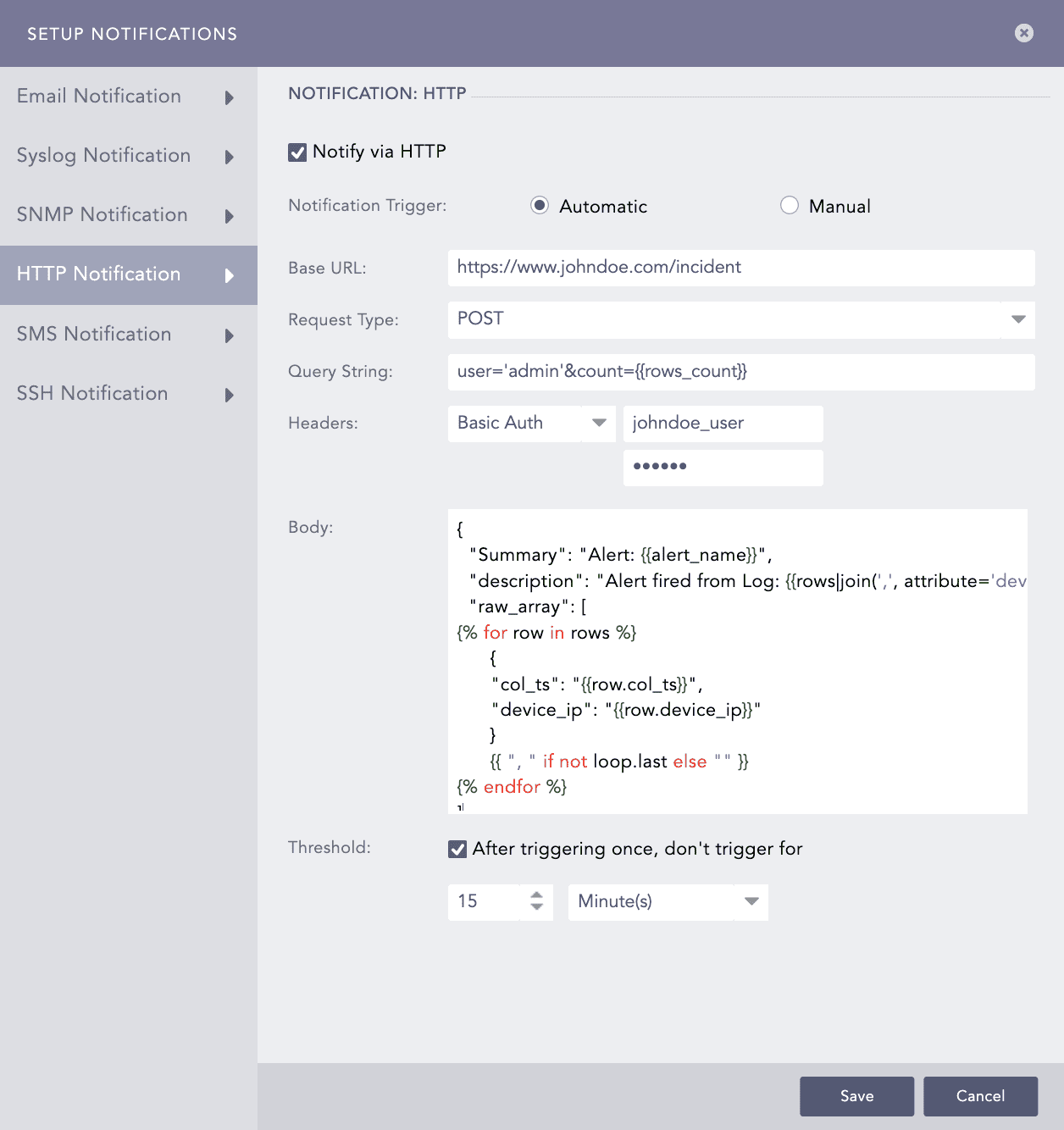
HTTP Notification Setup
Under Notification Trigger:
Select Automatic to send a notification every time the alert rule is triggered.
Select Manual to manually send the notification from the Incident Actions.
Provide either a valid IP address or domain name in the Base URL field.
Select a Request Type from the drop-down.
Provide a Query String. Logpoint supports various Jinja commands for alert rules. They are {{alert_name}}, {{detection_timestamp}}, {{risk_level}}, {{rows}}, and {{rows_count}}. You can write them in query as:
user='admin'&count={{rows_count}}
You can use the Jinja commands {{attack_id}}, {{attack_tag}}, {{attack_category}}, and {{log_source}} in the Query String and Body fields. You need to input JSON string in the Body field. You can also use the Jinja commands in the alert’s metadata fields. You can use the metadata fields threatactor, Associated_Malware, and System, as Jinja commands {{threatactor}}, {{Associated_Malware}}, and {{System}}.
Jinja template to display list of alerts and associated device ips:
{
  "Summary": "Alert: {{alert_name}}",

  "description": "Alert fired from Log: {{rows|join(',', attribute='device_ip')}}",

  "raw_array": [

{% for row in rows %}

      {

      "col_ts": "{{row.col_ts}}",

      "device_ip": "{{row.device_ip}}"

      }

      {{ ", " if not loop.last else "" }}

{% endfor %}

]

}
To learn more about which Jinja commands you can use for the Query String and Body fields, go to Logpoint Reserved Jinja Placeholders.
Select an authentication Header type.
If you select Basic Auth, enter the Key and Password.
If you select API Token, enter the Key and Value.
If you select Bearer Token, enter the Key.
Enter a template for the Body of the HTTP notification in Jinja format.
You can enter the template only for the POST, PUT, and PATCH request methods.
Set the Threshold.
Click Finish.
SMTP and SSH services can have Jinja2 Syntax as message or command.
Go to Settings >> Knowledge Base from the navigation bar and click Alert Rules.
Click the Setup Notification () icon from the Actions column of the alert rule.
Click SSH Notification and select Notify via SSH.
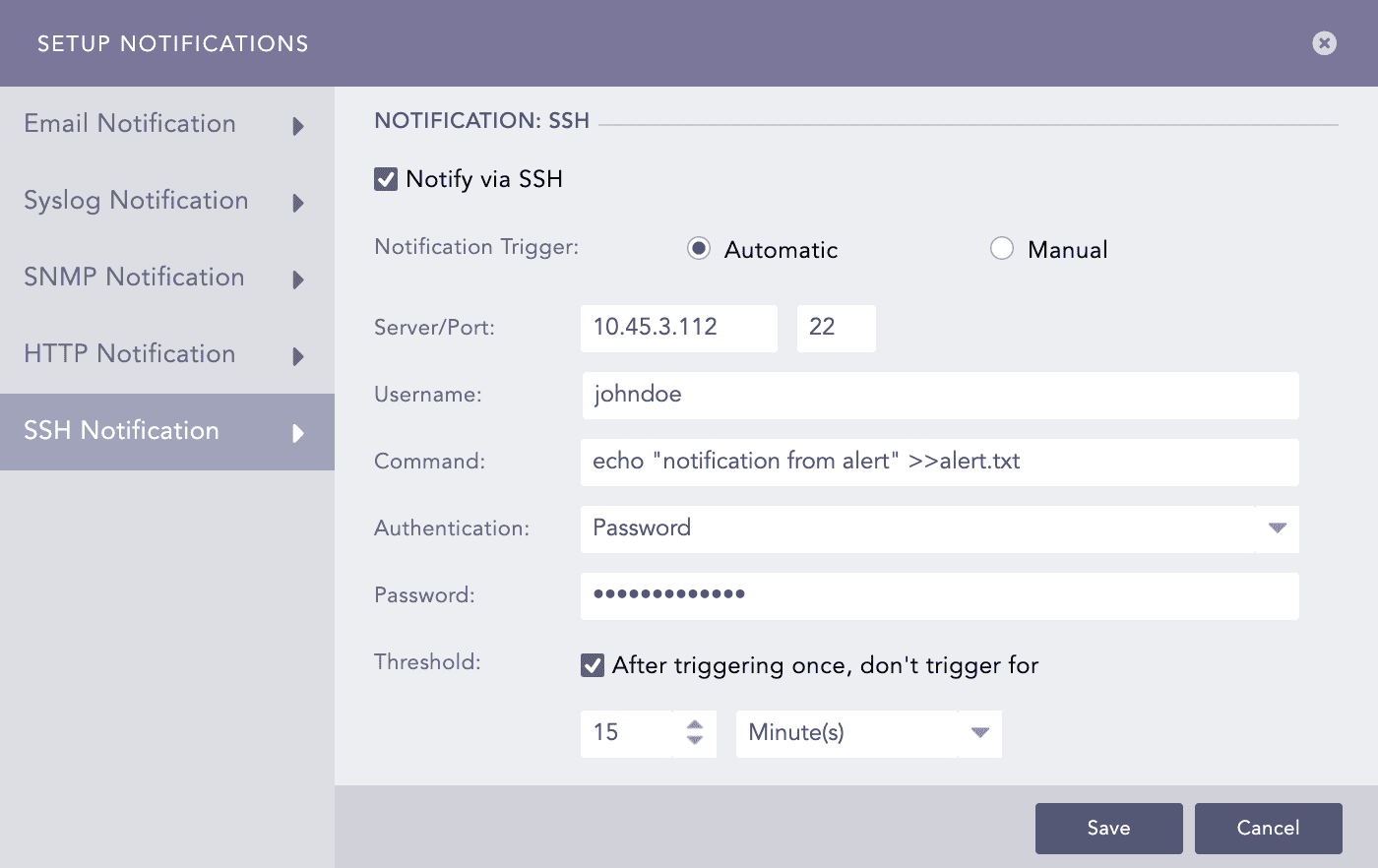
SSH Notification Setup
In Notification Trigger:
Select Automatic to send a notification every time the alert rule is triggered.
Select Manual to manually send the notification from the Incident Actions.
Enter a Server address and a Port number.
Enter a Username for the user in the destination server.
Enter a Command you want to execute when the alert rule is fired. Make sure that the command is a valid bash command and is executable.
You can use the Jinja commands {{attack_id}}, {{attack_tag}}, {{attack_category}}, and {{log_source}} in the Command field. You can also use the Jinja commands in the alert’s metadata fields. You can use the metadata fields threatactor, Associated_Malware, and System, as Jinja commands {{threatactor}}, {{Associated_Malware}}, and {{System}}.
Jinja template to write list of log datetime on a file:
echo -e "{% for row in rows %}{{row.log_ts|datetime('%B %d')}}{% endfor %}" >> /home/johndoe/file.txt
Note
This command writes a list of log associated datetime on file.txt which is located inside /home/johndoe/.
To learn more about which Jinja commands you can use for the Command field, go to Logpoint Reserved Jinja Placeholders.
Select the required mode of Authentication: Password or SSH Certificate.
If you select Password, enter a passkey in the Password tab.
If you select SSH Certificate, select the Certificate type: System Certificate or User Certificate. The SSH Certificate key is automatically generated. You must add the key to the authorized keys at ~/.ssh/authorized_keys in your system.
If you select System Certificate, Logpoint uses system-specific certificate for authentication.
If you select User Certificate, Logpoint uses individual user-specific certificate for authentication.
It is important for you to remember the password or the SSH certificate key as it is required later for user-validation.
Set the Threshold.
Click Finish.
Go to Settings >> Knowledge Base from the navigation bar and click Alert Rules.
Click the Setup Notification () icon from the Actions column of the alert rule.
Click SNMP Notification and select Notify via SNMP Traps.
In Notification Trigger:
Select Automatic to send a notification every time the alert rule is triggered.
Select Manual to manually send the notification from the Incident Actions.
Enter the trap receiver’s IP address and the Port number.
Enter a valid SNMP trap or Enterprise specific OID (Object Identifier) in the dotted decimal format. Make sure to not use the OID with a leading dot.
Select SNMPv2c or SNMPv3 according to the security level you require.
The notification settings change according to the version you pick.
For SNMPv2c configuration
Enter the name of the Agent that sends the SNMP trap.
Enter a passphrase in the Community String. The passphrase should be recognizable by the manager.
Enter the OID’s corresponding value in the Message.
For SNMPv3c configuration
Enter the Username.
Enter the Authorization Key and Private Key. You can select whether to Show or Hide your key.
In the Message field, enter the OID’s corresponding value.
You can use the Jinja commands like {{attack_id}}, {{attack_tag}}, {{attack_category}}, and {{log_source}} in the Message field. You can also use the Jinja commands in the alert’s metadata fields. You can use the metadata fields threatactor, Associated_Malware, and System, as Jinja commands {{threatactor}}, {{Associated_Malware}}, and {{System}}.
Jinja template to display risk level of alerts:
{% for row in rows %}

Risk Level: {{row.risk_level}}

{% endfor %}
To learn more about which Jinja commands you can use for the Message field, go to Logpoint Reserved Jinja Placeholders.
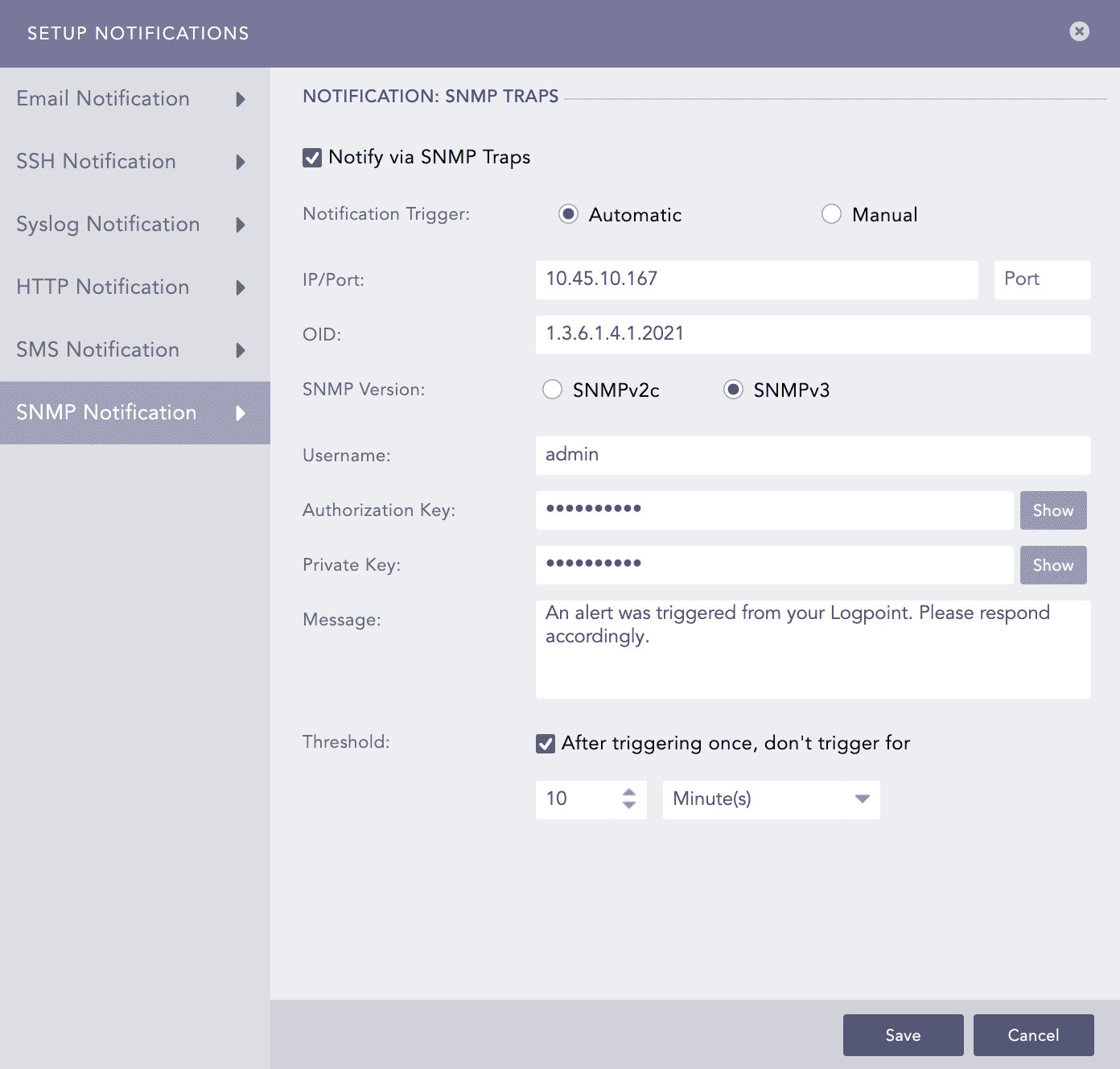
SNMPv3 Configuration
Set the Threshold.
Click Save.
Go to Settings >> Knowledge Base from the navigation bar and click Alert Rules.
Click the Setup Notification () icon from the Actions column of the alert rule.
Click Syslog Notification and select Notify via Syslog.
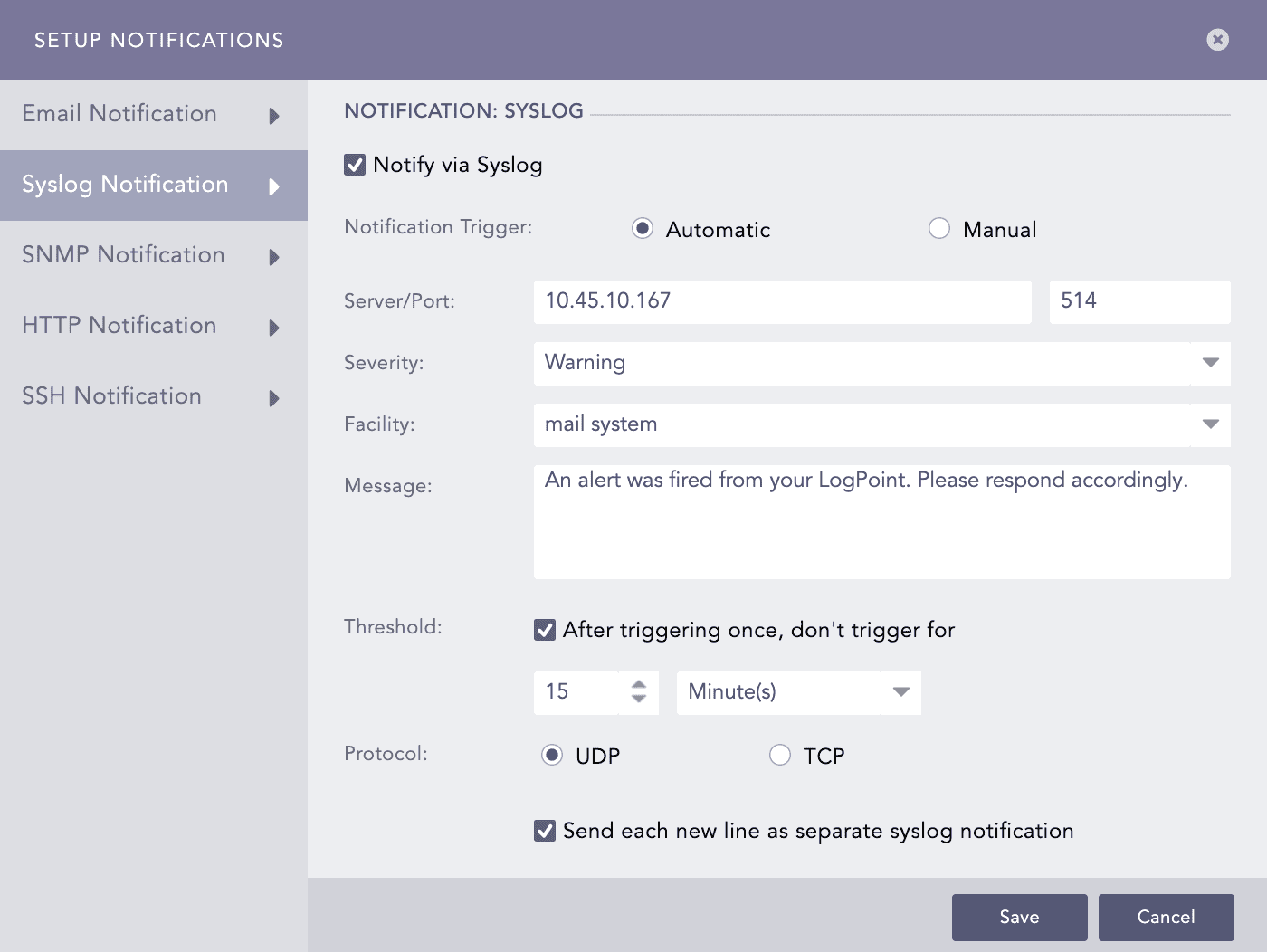
Syslog Notification Setup
In Notification Trigger:
Select Automatic to send a notification every time the alert rule is triggered.
Select Manual to manually send the notification from the Incident Actions.
Enter the IP Address and the Port number for the syslog receiver in the Server/Port textboxes.
Select the level of Severity and Facility from the drop-downs.
Enter a Message that provides the information about the event. You can use the Jinja template to construct a message that extracts specific information about the event.
You can use the Jinja commands {{attack_id}}, {{attack_tag}}, {{attack_category}}, and {{log_source}} in the Message fields. You can also use the Jinja commands in the alert’s metadata fields. You can use the metadata fields threatactor, Associated_Malware, and System, as Jinja commands {{threatactor}}, {{Associated_Malware}}, and {{System}}.
Jinja template to send syslog notification with alert name and timestamp
{% for row in rows %}

incident_name: {{alert_name}}; incident_ts: {{row.log_ts}};

{% endfor %}
To learn more about which Jinja commands you can use for the Message fields, go to Logpoint Reserved Jinja Placeholders.
Set the Threshold.
Select the UDP or the TCP protocol to send the Syslog Notification.
If you use UDP, the log message may be dropped or it may arrive out of order.
If you use TCP, the log message arrives without being dropped and in order.
Select the Send each new line as separate syslog notification checkbox to generate one syslog message for each log message in the search results. If you do not select it, all the messages within the chosen time range of the incident are compressed into one syslog message in the search results.
The Send each new line as separate syslog notification option is useful only if the Message textbox contains a Jinja template with a for loop.
SMTP and SSH services can have the Jinja2 syntax as a message or a command.
For SMTP, you can include the jinja2 syntax in the Message textbox to deliver more information about the alert rule fired. Using jinja2, you can explain the incident in an elaborate way and can fetch individual data while the alert is fired.
{{rows_count}} returns the count of the row.
{{rows}} returns the list of rows returned from search query.
The list returned from {{rows}} is in the machine format and difficult to read. For such cases, you can use filter functions along with your jinja syntax. The available filter functions are as follows:
readable
This command has its effect according to the query provided in alert; for plain search, it returns the result in a list whereas for queries with chart/time chart it displays the output in a tabular form. Use this filter as:
{{ rows | readable }}
date
You can convert the fields containing UNIX timestamp in year/month/day format. Use this filter as:
{% for row in rows %}
{{row.col_ts | date}}
{% endfor %}
time
This command converts the UNIX timestamp and displays the time in the format hour:minute:second. Use this filter as:
{% for row in rows %}
{{row.log_ts | time}}
{% endfor %}
datetime
You can use this syntax to convert datetime from UNIX timestamp. The result is displayed in the year/month/day hour:minute:second format. Use this filter as:
{% for row in rows %}
{{row.log_ts | datetime}}
{% endfor %}
You can also provide additional parameters to specify the required format.
Syntax to specify the format:
datetime (format_string, timezone)
For example:
{% for row in rows %}
{{row.log_ts | datetime ("%d %m %Y %H:%M:%S", "Asia/Kathmandu")}}
{% endfor %}
Iteration Through Values
You can iterate through the values returned from {{rows}}, use loops to view the items returned.
For query
error|chart count() by device_ip
You can use the following syntax in the message:
{%for row in rows%}
{{row.device_ip}}
{%endfor%}
This outputs the device_ip for every list returned by rows.
For Simple Search
You can use the readable function in case of simple search queries. If the parameters returned from the search queries contain UNIX timestamps, then you can use the date, time or datetime to convert them into readable form.
For searches with chart/timechart
You can use the readable function for the clear understanding of the values returned from the {{rows}}. If grouping functions used in the search query returns the parameters containing UNIX timestamps, then you can use filter functions date, time, and datetime to convert them into readable form.
Note
All the filter functions except the readable should be used in loops.
Order of Operations
For query:
| chart count(), max(port) as MAX, min(sev,sev>>3) by device_ip,
source_address, step(destination_port,100)
You can use the jinja syntax as:
{%for row in rows%}
{{row.device_ip}}
{{row.source_address}}
{{row.MAX}}
{%endfor%}
Note
The grouping function is written as it is in the query, hence device_ip and source_address were same in query and syntax.
Aggregation functions can be mentioned with their aliases; max(port) in the search query is denoted as MAX in jinja syntax.
To minimize confusion, you can use the position of the functions and name them accordingly:
For the query above:
The numbering starts from the first grouping function and goes from left to right as:
device_ip= col1
source_address=col2
step(destination_port,100)=col3
The complex functions such as step(destination_port,100) can not be used directly in jinja, the only way to use them is by using displacement count.
Example:
{%for row in rows%}
{{row.device_ip}}
{{row.col3}}
{%endfor%}
Once the grouping functions are done with naming, the order moves to the beginning of the aggregation function and the numbering goes as:
max(field)=col4
min(sev, sev>>3)=col5
If aliases are used for aggregation functions, they can be written directly in jinja syntax. In the example above, for max(port) the Jinja syntax can be written as:
{%for row in rows%}
{{row.MAX}}
{%endfor%}
Note
In case of a timechart, the timechart function itself is treated as an aggregation function as it returns the UNIX-timestamp for the search. In such case, timechart count() is the first aggregation function, and you should name it accordingly. You can use the jinja syntax as:
{%for row in rows%}
{{row.device_ip}}
{{row.colx}}
{%endfor%}
where colx is the displacement count of timechart function.
Timechart can be represented with the timestamp so you can write jinja syntax as:
{%for row in rows%}
{{row.device_ip}}
{{row.timestamp}}
{%endfor%}
For SSH in the SSH command, you can use the following jinja2 keywords:
Keyword |
Syntax Definition |
|---|---|
{{rows_count}} |
Number of rows |
{{alert_name}} |
Name of the alert |
{{correlation_name}} |
Name of the correlation |
{{detection_timestamp}} |
Detection timestamp |
{{risk_level}} |
Risk level |
For example:
For the query User Login, you can use the command echo alert with log count ={{rows_count}} with risk_level= {{risk_level}} >> /tmp/login_alert.txt
After the alert is fired, login_alert text is created at destination location with the number of rows and the risk level of alert.